
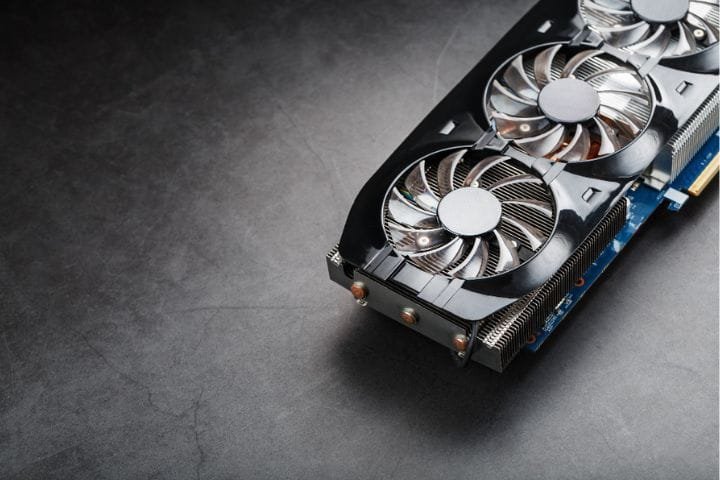
Learn how NVIDIA’s new Automatic Tuning feature lets you safely overclock your GPU without voiding the warranty. Discover step-by-step instructions, performance insights, and why this tool is ideal for risk-free GPU optimization.
Overclocking is one of the well-known methods to get one or two percent more from your graphics card. But fear creeps in, especially where it may lead, such as the possible voiding of your hardware’s warranty. Thanks to NVIDIA’s new Automatic Tuning feature, GPU overclocking is not only safer from the warranty standpoint but is much easier than before. But what is this feature, and how does it differ from traditional forms of overclocking? Let’s dive in.
What is NVIDIA’s Automatic Tuning?
Automatic tuning is a new feature available in NVIDIA that helps to overclock. Unlike manual adjustment, where users have to set the clock speed and voltage levels to adjust the chipset, then the behavior has to be repeated. Automated Tuning does it all with the click of a button. This feature operates via the NVIDIA App, which, although in beta, is set to be released to production soon. In Automatic Tuning, you can easily increase GPU performance without compromising your cooling system, and it doesn’t seize your warranty.
This means that when engaging Automatic Tuning, we get the best-tuned performance without much probability of problems. This feature has been designed by NVIDIA to remain within safe operating conditions and rarely lead to overheating or any other problems that could result from manual overclocking.
How to Overclock Your GPU Using NVIDIA’s Automatic Tuning
If you’re ready to try overclocking without diving into technical details, here’s how to use NVIDIA’s Automatic Tuning.
- Download the NVIDIA App: Ensure you have the latest version of the NVIDIA App installed on your PC. If it’s still in beta when you read this, keep an eye out for the stable release.
- Open the App and Enable Automatic Tuning:
- Open the NVIDIA App.
- Navigate to the “System” tab and select the “Performance” section.
- Here, you’ll find an option to enable “Automatic Tuning.”
- Run the Auto-Tuning Process: Once enabled, the Automatic Tuning feature will run diagnostics to determine optimal overclocking settings for your GPU. This process takes about 20 minutes, so sit back and let it do its job. During this period, it’s best to close any unnecessary applications to avoid interference.
- Review Your Results: Once the tuning is complete, the app will display the new clock and memory boosts. For instance, we saw a modest but effective 97MHz boost to GPU clock speed and a 200MHz increase to memory with an RTX 3070 card during testing.
The Automatic Tuning feature provides a convenient way to overclock with less risk, particularly if you’re new to overclocking and unsure about making manual adjustments.
Does Auto Overclocking Bring Noticeable Performance Gains?
Our performance tests with Automatic Tuning enabled in the NVIDIA app on the RTX 3070 were quite intriguing. We compared performance under three configurations: undervolted state, on default settings, and with Automatic Tune enabled. The Time Spy benchmarks revealed some slight variations:
- Undervolt: 13,849
- Default Settings: 13,841
- Automatic Overclock: 13,956
As expected, the Automatic Overclock got the highest score, but the variance was small. Fine-grained performance improvements would remain fairly low – less than a 5% increase or so, at least in similar real-world scenarios to the game used in the paper.
In our case, we determined that results could be achieved that were nearly equal in performance to that of overclocking but with vastly decreased heat produced when running at 925mV as an example of undervolting. I kept using the undervolt profile for normal use since it provided reasonable performance and kept noise at a low level.
Overclocking Risks: Can It Damage Your GPU?
The general fact about overclocking, be it by manual means or by using BIOS, is that it comes with a thin chance of it. The bearings and fans in GPUs and CPUs are also protected with a thermal fuse that will kill the chip if it ever gets too hot and draws too much power, thus reducing the possibility of failure. This means that utilizing NVIDIA’s Automatic Tuning tool is probably safe, perhaps even safer than manual overclocking.
But, of course, there is a bit of a chance to be faced with problems too. According to our findings, however, Automatic Tuning is a layer of safety against thermal and power threats; therefore it is a safer bearing for the users for those willing to stick to simple solutions.
Does Overclocking with NVIDIA’s Automatic Tuning Void Your Warranty?
If you’re worried about voiding your warranty, NVIDIA’s Automatic Tuning is a safe bet. However, it needs to be pointed out that using the provided tool does not in any way cause your NVIDIA GPU to lose warranty. This feature was thought out with the warranty in mind, so if you are still under warranty, you can use Automatic Tuning.
At the same time, the manual overclocking of your GPU using software such as MSI Afterburner is still somewhat dubious. Manufacturers know if your GPU was overclocked, and therefore, in case it was damaged, replacements can be done easily. However, they always have a problem proving that overclocking was the reason that caused the damage; thus, if you don’t talk about manual overclocking, you will likely get your warranty service. If you’d like to avoid complications altogether, though, there’s a tool made by NVIDIA that could be used instead.
Final Thoughts:
NVIDIA’s Automatic Tuning feature provides a worry-free way to experiment with overclocking, giving you an easy entry point without the hassle of manual adjustments. While the performance gains are modest, they’re noticeable enough for tasks that demand a bit more GPU power.
If you’re someone who values warranty protection but still wants to try overclocking, NVIDIA’s Automatic Tuning feature is an excellent place to start. It lets us enjoy that performance boost without having to worry about voiding our warranty or managing complex settings. Whether you’re a beginner or a seasoned user, Automatic Tuning offers a reliable way to get the most out of your NVIDIA GPU.
Also Read: Exploring Web Browsing on Oculus Quest 2: Everything You Need to Know
About the Author
