
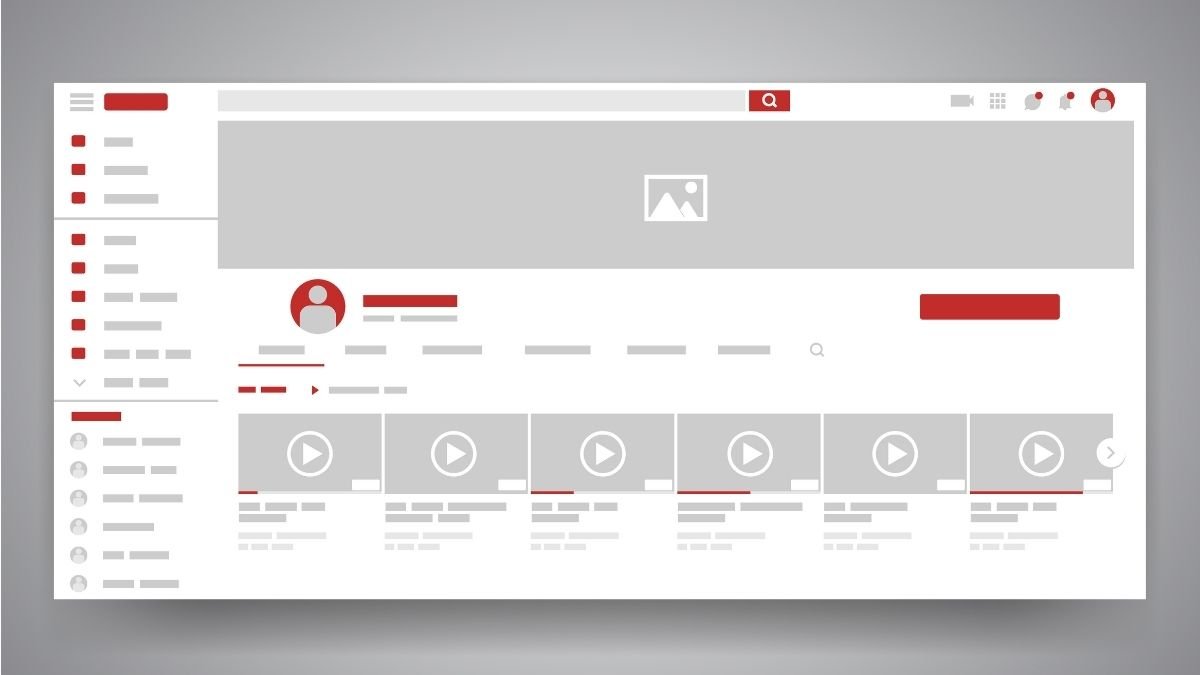
Often times a YouTube channel banner is the first visual content that will be seen by visitors once they are on the channel page. It plays a subtle, but important role in influencing first impressions, gives reinforcement to the brand and communicates what a channel is about. From the perspective of a viewer – not a reviewer – the pose of a YouTube channel banner is one of pleasing ease in view of the guidelines of images and follows the Web browser or other mobile devices someone has to use them.
This guide takes the whole process into consideration and includes some discussion of the requirements for a banner for YouTube, as well as some consideration of minor details that stump users.
Knowing YouTube Channel Banners Guidelines
Before uploading any image, it is important to understand the technical requirements set by YouTube. These guidelines are there in order to make the banner look alike on TV, a desktop, a tablet and smartphones.
The size recommended for a banner is 2048 x 1152 pixels and with an aspect ratio of 16:9. This resolution gives the ability to make the image scale cleanly on larger screens without being blurry at the same time. Another critical factor is the “safe area” which is 1235 x 338 pixels. Any essential text, logos or focal elements are kept within this area thus these elements will not be cropped on smaller-sized devices.
One limitation that would not be readily perceived is file size. For banner images they have to be 6MB in size. Image size greater than this would not be uploaded and compressed properly which would affect the visual quality. From a usability point of view, these are reasonable requirements but if these things are ignored then the results after the upload are likely to be disappointing.
Changing Your YouTube Channel Banner on Desktop
Updating a banner from a desktop or laptop provides the widest control and viewing of how the image will appear on devices. The process is managed by YouTube Studio and is pretty much – smooth.
After opening a web browser and logging in to YouTube Studio, the left-hand side of the web page directs to the “Customization” section. This area is centralising changes to channels, layout and branding level and basic information. Select the “Branding” tab and here you will be able to choose the banner image option.
The uploading of a new image is as easy as clicking on the Change then clicking on one file on the computer. One feature that is useful during this step is the preview window, which is a preview of what the banner would look like on TVs, desktops and mobile devices. This preview is particularly useful to check whether the text and logo are safe within the area that is visible.
When you are happy with the preview once you confirm a change by clicking on “Publish” the update is instantly made. From the point of view of the person reviewing, the workflow for the desktop makes sense and is well-organized even if the person who is managing the channel is doing it for the first time.
Updating Your YouTube Channel Banner on Mobile
Changing the channel banners on a mobile device is also equally possible though experience is comparatively compact due to screen size. The mobile app of the YouTube channel only allows the update of the banner on Android and IOS mobile devices.
After opening the app and tapping on the profile icon, go to “Your Channel” to open the channel homepage. A little pencil symbol gives the tools for editing. From here it is possible to tap on the camera icon at the top of the banner area to change the image.
Users can take a new photo or select a photo from the gallery. Once selected, there are some primitive cropping tools on the app to scale the picture down to different screen sizes. Saving the changes now changes a banner.
While this is good enough, there are a certain number of visual cues available on the mobile compared to the desktop. It is best to use it if the banner picture has already been designed based on YouTube sizes and safe area guidelines.
Common Mistakes to Avoid When Updating a Banner
There are a number of common problems that happen when the creators want to change their channel banner. A common mistake is trying to include as much text as possible close to the edge – this may be fine with the copy being shown on a desktop but that may disappear on mobile devices. Another, is the uploading of images at low resolution that looked pixelated on bigger screens.
So is over-crowding your banner with too much text or graphics. A clean and focused design will most likely look better visually, and will be more in line with the layout of YouTube. In the eyes of a reviewer, simplicity almost always comes out to be a much more professional look.
Final Thoughts
Changing the YouTube channel banner is not a challenging task that makes the channel look fresh and significant. The platform has quite clear guidelines, decent preview tools, and already existing options on the desktop and mobile. When the recommended image size and safe area rules are followed, then the results are consistent across devices.
Overall, YouTube’s banner customization process is a decent tradeoff between flexibility and simplicity. With an appropriately prepared image, and a few careful clicks in there, changing a channel banner is less of a technical chore, and more of a chance for creativity.
Also Read: What Is Google Gravity? A Fun Look into The Google Play Side
About the Author
