
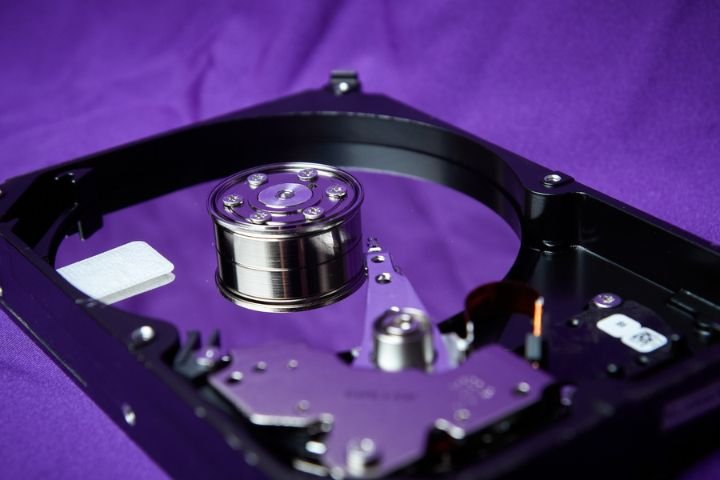
When you install a new hard drive or solid-state drive, one of the questions you are often asked is pick between MBR (Master Boot Record) or GPT (Guid Partition Table); in short its going to be MBR vs GPT. At first glance, this may seem like just another technical choice, but it has a direct impact to how your system stores, organizes, and even boots your data.
Choosing the proper partition style can save you a lot of headaches in the future – especially, if you are dealing with larger drives or switching between older and newer systems. To help you make an informed choice, let’s break down what each format is, how they’re different and which one is better for your needs.
What is MBR?
MBR (Master Boot Record) came into the picture in the early 1980s and it became the standard approach in containing data on a disk soon thereafter. It stores some boot information as well as partition information in the very first sector of the drive which are essential.
This type of design made sense at a time when the size of hard drives was small, and computing needs were less demanding. MBR is by which a system is known where the data is stored and how to access it when it’s started.
There are some limitations that make the use of MBR less ideal than it used to be today. It supports solely drives which are not enclosure bigger than 2TB. If your drive is something bigger, those additional spaces are not going to be possible, unless you make the change to GPT. In addition, MBR can only do four major partitions. If you would need more of it, you will have to convert one of them to extended, which will in turn allow you to have logical partitions within it.
In spite of such limitations, MBR has its application. Many older systems, particularly those running on the old firmware known as Bootstrap Input/Output Software or just ‘BIOS.’ and not the new often called “UEFI”, will use MBR in the believe of boosting. For example if you’re setting up an older PC running Windows 7 on a 500GB hard drive then MBR is going to work just fine.
What is GPT?
GPT (GUID Partition Table) is the newer which is also more advanced replacement of MBR. It was designed as part of the UEFI (Unified Extensible Firmware Interface) standard, which is designed to supersede an obsolete system known as the computer’s system called the so-called ‘BIOS’.
Unlike MBR, GPT doesn’t rely on one boot sector only. Instead it maintains various copies of data of the partition across the disk. This redundancy in data means that if part of it gets corrupted, another copy of the data can often replace the lost information which reduces the risk of not being able access the drive in the first place.
GPT supports capacities much larger than 2TB hence its essential personal for today’s storage place devices where capacities are typically 4TB, 8TB or much more. It contains up to 128 partitions, without the use of extended/ logical partitions.
For instance, if your setting up a gaming system with a 4TB Camera and you wanted to separates OS, games, backups, and Media into individual partitions, it is very simple to do with GPT without running into any limits.
The Basic Difference between MBR and GPT
Although both are used for the same purpose, the management aspects as well as security they provide for the data is quite different.
- Capacity: MBR has maximum of 2TB and GPT can support the drives with almost unlimited nothing is storage.
- Partitions: Maximum partitions of MBR is 4, and GPT supports to 128 partitions.
- Reliability: GPT stores data in multiple copies of partition data which is more reliable when faced with corruption as compared to MBR’s single point methodology.
- Compatibility: MBR is compatible with older systems with old operating system and with newer systems with recent version of operating system like Windows 10 and Windows 11, GPT requires UEFI firmware.
In terms of things like adding nowadays hardware, this means that: If you’re climbing your way up the ladder of modern hardware, GPT is almost always the better way to go. However, if you’re dealing with legacy systems, MBR may still be when you need it.
Why GPT is Becoming the Norm?
Over the years data storage stands have exploded. From the creation of large video files, to business servers juggling with petabytes of information, the requirement for greater capacity drives has made the use of MBR’s 2TB capacity impractical.
Operating systems, such as Windows, Linux and macOS, default today to GPT being the format to use when creating partitions for new drives, especially on a UEFI-based system. Even consumer machines, such as gaming consoles and workstations benefit from the flexibility and robustness of GPT.
For instance, Microsoft has GPT as a requirement for those who have Windows 11 installed as well. This change represents a general trend within which industry is dephasing out MBR for most mainstream applications.
Which One Should You Use?
Which one you should choose between MBR and GPT is decided from your hardware and the kind of work that you are doing:
- Use MBR if you’re running older systems that don’t have UEF support. For example, an even older laptop or desktop device may use the old-fashioned (BIOS) OS and may only know how to boot from MBR drives for booting.
- But you should use GPT if you are using the newer systems, especially when you are working with large drives or if you want more than four partitions in your system. If you’re creating a new system (workstation or gaming computer), then GPT almost always is the way to go.
A good rule of thumb is if your computer and operating system has support for GPT then use it. It can future proof your storage, and keeps you from limitations.
Conclusion
When dividing a drive, the choice between MBR and GPT is something that’s more than just a technical detailing – it creates in what way your system possesses the ability to keep on its store and draw data.
As technology still continues to evolve, the GPT is rapidly increasing as the common language. Unless you’re working in very old hardware, GPT is almost always the smarter, more future proof very choice.
By understanding strengths and weaknesses of both you’ll be able to confidently set up your storage whether that be putting in a small SSD in a budget laptop or configuring a monster data array for enterprise use.
Also Read: Apple Teleport Machine – One Day Travel Might Be Changed Forever?
About the Author
